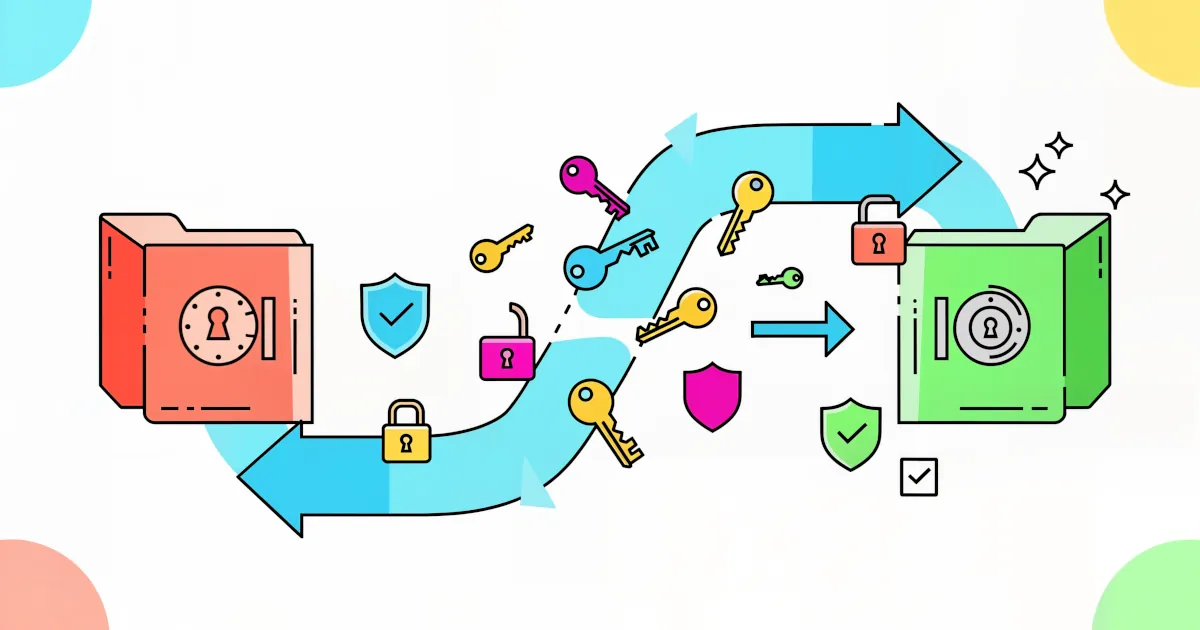

Migrating to a New Password Manager Made Easy
Thinking about switching password managers but dreading the chaos? Totally understandable. Moving hundreds of logins, 2FA codes, secure notes, and maybe even payment info can sound like a nightmare.
The good news: it doesn’t have to be. With a bit of prep and the right steps, you can migrate to a new password manager in under an hour, with everything neat, secure, and ready to use.
This guide walks you through:
- How to use a password manager during a migration
- The benefits of switching (and not staying stuck with a bad tool)
- What to look for in reviews before you choose
- A step‑by‑step migration plan that keeps things safe and organized
Why Switch Password Managers at All?
If your current password manager is “fine,” it can be tempting to stay put. But there are some legit reasons to move on:
- Better security features: Modern managers offer passkeys, stronger encryption, and dark web monitoring.
- Cross‑platform sync that actually works: Smooth syncing across phone, tablet, laptop, and browser.
- Cleaner interface: If using your manager feels like wrestling a spreadsheet from 2005, it’s time.
- More control over your data: Self‑hosting, more transparent privacy policies, or zero‑knowledge architecture.
- Price and value: Sometimes you can get more features for less money, or move to a reputable free option.
The key idea: your password manager should make life easier and safer, not frustrating or confusing.
Before You Move: Choose the Right New Password Manager
Don’t rush this step. Migrating is easy if you pick a tool that fits your needs from the start.
Read Reviews With a Critical Eye
When checking reviews, focus on:
Security reputation
- Look for independent audits, bug bounty programs, and clear encryption explanations.
- Search “[tool name] security review” and “[tool name] breach” to see any past incidents and how they were handled.
Ease of use
- Do people say it’s simple to set up and use day‑to‑day?
- Are the mobile and desktop apps both solid, or is one neglected?
Import/export support
- Check if it supports imports from your current manager by name.
- Look for guides on “How to use a password manager to import from [OldApp].”
Customer support
- Are there helpful docs, real support responses, and active communities (Reddit, forums, Discord, etc.)?
Benefits you actually care about
- Shared vaults for families or teams
- Integrated 2FA/OTP codes
- Secure file storage or secure notes
- Biometric unlock on your phone
Don’t just read star ratings. Look for detailed user experiences and professional reviews that talk about trade‑offs, not just “It’s awesome!”
Step 1: Clean Up Your Old Password Manager
Before you move anything, tidy up. No sense importing a digital junk drawer.
Delete accounts you don’t use anymore
- Go through your list and close accounts you truly no longer need.
- Then delete those logins from your password manager.
Merge or fix duplicates
- You might have three versions of the same site: “facebook,” “Facebook,” “FB login.”
- Keep the newest, correct one and delete the rest.
Update weak and reused passwords
- Many password managers have a “Security Report,” “Watchtower,” or similar. Run it.
- Fix the worst offenders first: banking, email, cloud storage, social media.
- Generate strong, unique passwords using the manager’s built‑in generator.
You’re not aiming for perfection yet—just trimming the mess so your new manager gets a cleaner set of data.
Step 2: Export Your Data (Safely)
This is the most sensitive step, so treat it like handling a briefcase full of cash.
Find the Export Option
- Usually under Settings → Advanced → Export or Tools → Export.
- Export format is often CSV or an app‑specific encrypted format.
Prefer Encrypted Exports When Available
- Some managers let you export an encrypted backup file.
- If your new manager supports importing that, use it. It’s safer than plain CSV.
If You Must Use CSV
- Save it in a secure folder, not your Desktop or Downloads.
- Don’t email it to yourself. Don’t upload it to cloud storage unencrypted.
- Plan to delete it securely as soon as the import is finished.
Your export file contains all your logins in plain text. Treat it like a temporary biohazard.
Step 3: Set Up Your New Password Manager
Now, time to build your new home.
Create your new account
- Choose a strong master password. This is the one password you must memorize.
- Consider a passphrase like:
three-red-bicycles-dancing-slowly - Turn on two‑factor authentication (2FA) for the account itself.
Install apps everywhere you use passwords
- Browser extension (Chrome, Firefox, Safari, Edge, etc.)
- Desktop app (if offered)
- Mobile app (iOS/Android)
- Log in and enable biometric unlock (Face ID, fingerprint) if available.
Familiarize yourself with the layout
- Where are “Vaults” or “Collections”?
- How do you add a new login manually?
- How does the password generator work?
Knowing how to use your password manager now will make the migration feel smoother.
Step 4: Import Your Passwords
This is the satisfying part where everything shows up in the new app.
Locate the Import Tool
- Typically in Settings → Import or Tools → Import.
- Choose your old password manager from a dropdown if it’s supported.
Upload Your Export File
- Select your exported file (CSV or encrypted backup).
- Map the columns if needed (site, username, password, URL, notes, etc.).
- Some managers do this automatically; others ask you to confirm.
Check for Errors
- Look for warnings about entries that couldn’t be imported.
- Manually add any critical accounts that didn’t come through correctly.
Organize as You Go
- Create folders or tags (e.g., Banking, Work, Shopping, Family).
- Move items into shared vaults if you’re on a family or team plan.
Once imported, run a quick test: log into two or three of your most-used sites from your browser. If autofill and saving changes work, you’re in good shape.
Step 5: Move Your 2FA Codes (If You Store Them)
If you use your password manager to store one‑time passwords (those 6‑digit 2FA codes), you’ll want to bring them with you. This is trickier, so proceed carefully.
Prioritize important accounts
- Email, bank, major cloud storage, work accounts, social media.
For each account
- Log in using your old 2FA method.
- Go to the account’s security settings.
- Disable 2FA, then re‑enable it, scanning the QR code with your new password manager.
- Confirm that codes from the new manager work before moving on.
Do not delete your old manager yet
- Keep it as a backup until you’ve tested all important logins.
Some tools support direct OTP/2FA migration, but many don’t. If manual re‑enabling feels overwhelming, do a few accounts per day.
Step 6: Test, Then Retire the Old Manager
You’re almost done.
Use your devices normally for a few days
- If you bump into a login that doesn’t work, fix it on the spot in the new manager.
- Update any outdated passwords directly into the new tool.
Once you’re confident everything works
- Delete the export file (CSV) securely from your computer.
- Uninstall the old password manager from all devices.
- If you’re sure you’ll never need it again, close your old account.
Congratulations—you’ve successfully migrated.
The Benefits of a Successful Migration
After the dust settles, you should notice:
- Less friction: Autofill just works across devices.
- Better security posture: Stronger passwords, possibly passkeys, and better 2FA handling.
- Cleaner organization: Tags, vaults, and shared access where needed.
- Peace of mind: One trustworthy, up‑to‑date hub instead of a patched‑together system.
That’s how to use a password manager the way it’s meant to be used: as a central, secure, convenient control center for your digital life.