
How to Use a Password Manager Step by Step
Simple tech for everyone
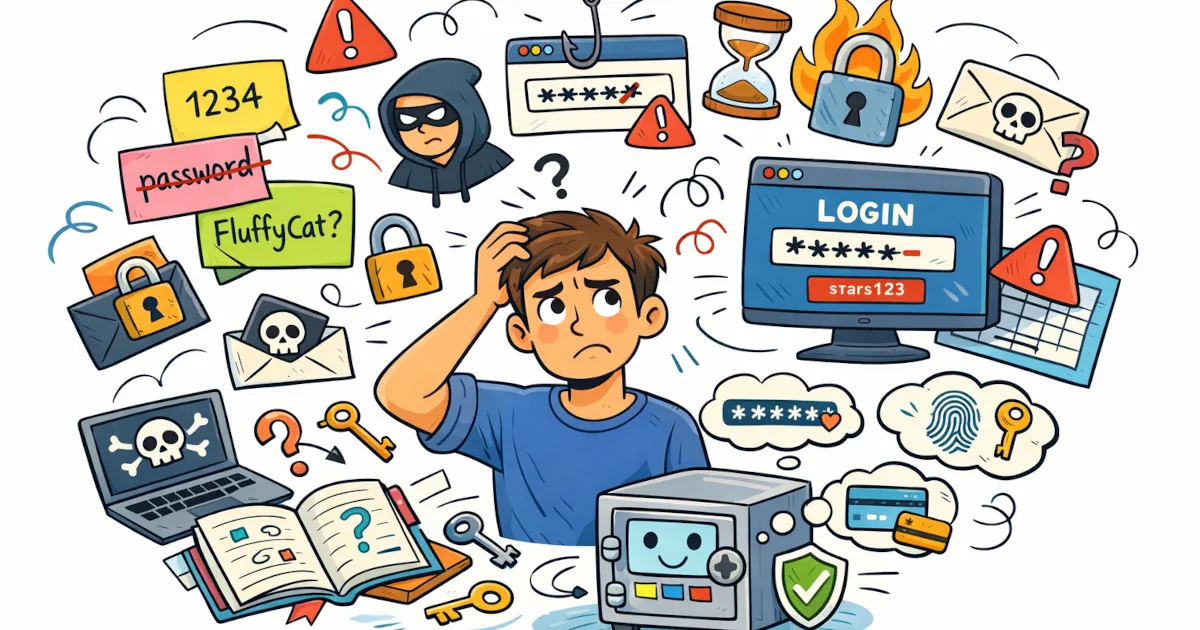
Online life is full of logins: email, banking, streaming, shopping, work tools, games… and every single one asks you for a password. Most people either:
- Reuse the same password everywhere, or
- Use slightly different versions of one password, or
- Keep a messy notes app / spreadsheet / notebook full of logins
None of these are safe.
A password manager fixes this by remembering strong, unique passwords for you. You only need to remember one master password, and the manager does the rest.
Let’s walk through exactly how to use a password manager step by step, in plain English, no tech degree required.
Step 1: Pick a Password Manager
First, you need to choose a tool. There are three main types:
Built into your browser
- Examples: Chrome Password Manager, Safari Keychain, Edge
- Pros: Free, already there, simple
- Cons: Tied to one browser, fewer advanced features
Built into your device’s ecosystem
- Examples: Apple iCloud Keychain, Google Password Manager
- Pros: Great if you’re heavily in one ecosystem, syncs across that ecosystem’s devices
- Cons: Less control if you mix devices (e.g., Android + Mac + Windows)
Dedicated password managers (recommended)
- Examples: 1Password, Bitwarden, Dashlane, NordPass, Keeper
- Pros: Designed specifically for this job, work across browsers and devices, more features
- Cons: Some cost money (Bitwarden has a good free tier)
What to look for:
- Works on your devices (Windows/Mac, Android/iOS, your browser)
- Syncs across devices
- Has browser extensions
- Has good reviews and a clear privacy/security policy
Once you’ve picked one, go to the official website or app store and install it.
Step 2: Create Your Account and Master Password
Now you’ll set up the one password to rule them all: your master password.
2.1 Create your account
- Open the app or website
- Click Sign Up or Create Account
- Enter your email address
- Follow the prompts (email verification, etc.)
2.2 Create a strong master password
This is the only password you must remember, so make it:
- Long (at least 12–16 characters)
- Unique (never used anywhere else)
- Hard to guess, but easy for you to remember
A good trick: use a passphrase.
Example pattern:
Three random words + numbers + symbol
yellow-bus-laptop!87
Even better: a sentence that only you would think of:
My first dog loved pizza in 2009!
Write it down on paper once and put it somewhere safe if you’re worried about forgetting it. Do not store it in a note on your phone or a document on your computer.
Step 3: Turn On Sync and Install Extensions
To make the password manager actually useful, you want it everywhere you log in.
3.1 Enable sync (if available)
In your password manager settings, look for:
- “Sync” or “Sync across devices”
- Make sure it’s enabled
This lets your passwords appear on your phone, tablet, and computer without you doing anything extra.
3.2 Install browser extensions
Most password managers have an extension for:
- Chrome
- Firefox
- Edge
- Safari
- Brave, etc.
Install it from the browser’s official extension store (or via the manager’s website).
Log in to the extension with your new password manager account.
Now your manager can:
- See login forms
- Offer to save new logins
- Autofill usernames and passwords
Step 4: Import or Add Your Passwords
Time to get your logins into the manager.
You have two main options:
Option A: Let it capture logins as you go (easiest)
- Go to a website you use (e.g., Gmail, Netflix)
- Log in like you usually do
- Your password manager should pop up:
- “Save this login?” or “Add to vault?”
- Click Save or Yes
Do this over the next few days/weeks as you use different sites. Your vault will slowly fill up.
Option B: Import from the browser (faster)
If your browser already saved passwords:
- Go to your browser settings > Passwords
- Look for an Export option (often under “⋮” or “More”)
- Export to a file (usually
.csv) - In your password manager, look for Import
- Choose the browser or CSV file, follow the prompts
Now your manager will have a big chunk of your logins right away.
Step 5: Start Using Autofill
Here’s where the magic happens.
- Visit a website where you have an account
- Click in the username or email field
- Your password manager should:
- Show a little icon in the field
- Or a pop-up from the browser extension
- Choose the saved account
- It fills in both email and password for you
Then just click Log In.
If it doesn’t appear, you can:
- Click your password manager’s browser extension icon
- Search for the website’s name
- Click the login you want to use
No more typing or remembering long, weird passwords.
Step 6: Generate Strong New Passwords
Now that your manager is set up, you should start upgrading your old passwords.
6.1 Use the password generator
When you:
- Sign up for a new site, or
- Change your password on an existing site
Look for a Generate Password button or icon in your manager.
Customize if you want:
- Length (aim for 16+ characters)
- Include lowercase / uppercase / numbers / symbols
The manager will create something like:
S9f!hT4qZp1&nD7v
That’s impossible to remember, but you don’t need to. The manager saves it automatically for that site.
6.2 Update old weak passwords
In your password manager, many apps show:
- Password strength (weak / reused / strong)
- A “Security Check” or “Password Health” report
Start with the most important accounts:
- Banking / PayPal
- Main shopping sites
- Social media
Update each one with a generated strong password.
Step 7: Use It on Your Phone and Tablet
Don’t forget your mobile devices.
- Install the same password manager’s app from the App Store or Google Play
- Log in to your account
- Enable autofill:
- On iPhone:
- Settings > Passwords > Password Options
- Turn on your manager under “Allow Filling From”
- On Android:
- Settings > System or General Management > Passwords & Autofill
- Choose your password manager as the autofill service
- On iPhone:
Now, when you log in to apps (Instagram, banking, etc.), your manager will offer to fill credentials there too.
Step 8: Add Extra Security (But Keep It Simple)
To protect your vault, turn on two-factor authentication (2FA) for your password manager account.
This means: even if someone guesses your master password, they still need a code from your phone.
In settings, look for:
- “Two-factor authentication”
- “Multi-factor authentication”
- “2FA”
You’ll usually:
- Scan a QR code with an authenticator app (like Google Authenticator, Authy, or another code app)
- Enter the 6-digit code it gives you
- Save backup codes in a safe place (printed or written down)
That’s it. Extra safety without a lot of extra work.
Step 9: Day-to-Day Use (What It Feels Like)
Once everything’s set up, your daily routine becomes:
- Go to a site
- Click in the login box
- Select your saved login
- Click “Log In”
When you sign up for something new:
- Use the password generator
- Let the manager save it
- Forget about it
If you ever need to see a password:
- Open your password manager
- Search for the website or app
- Click “Show password” (you may need to re-enter your master password or use your fingerprint/Face ID)
That’s all. It’s basically a smart, encrypted notebook that types for you.
Quick Recap
- Choose a reputable password manager
- Create one strong, memorable master password
- Turn on sync and browser extensions
- Let it save logins as you use websites
- Use autofill instead of typing passwords
- Generate strong passwords for new and important accounts
- Install it on your phone and turn on autofill
- Add two-factor authentication for extra protection
You go from “I reuse the same 3 passwords everywhere” to “every account has a crazy-strong unique password” with almost the same amount of effort.