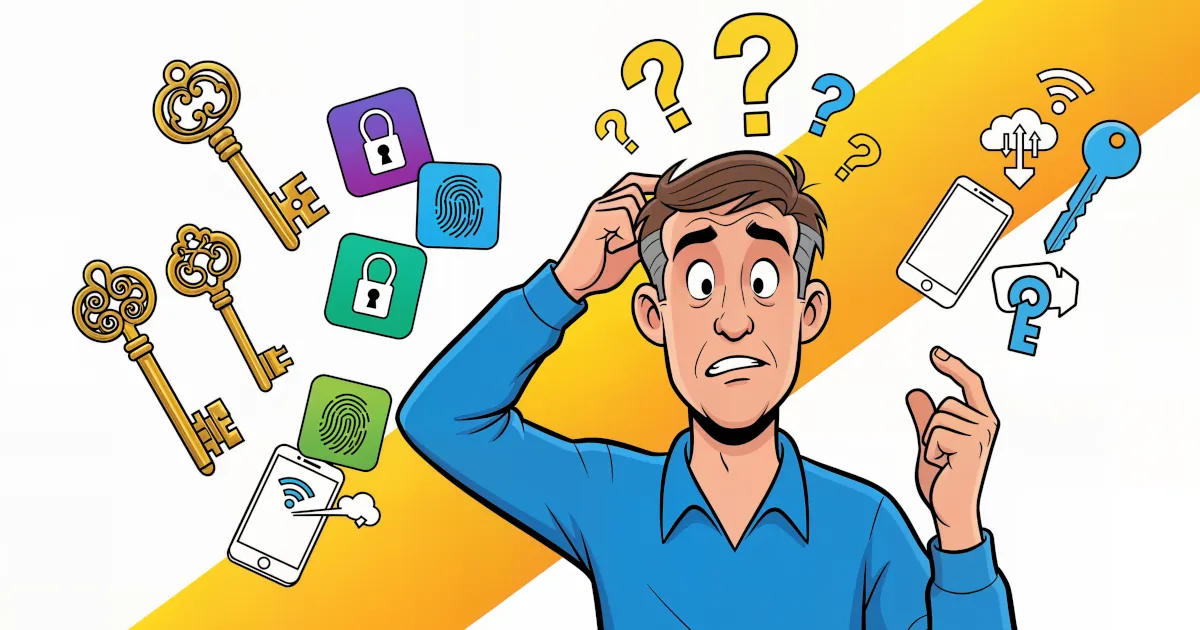

Securely Sharing Passwords with Family or Team
Sharing passwords by text, email, or sticky notes is pretty much like taping your house keys to the front door and hoping no one notices. It might work today… until it very much doesn’t.
That’s where password managers come in. They don’t just store your logins; they also let you share passwords securely with family members or teammates without exposing the actual password.
Let’s walk through:
- What secure password sharing actually is
- The benefits of using a password manager
- How to use shared vaults and permissions
- What real users say (reviews-style feedback)
- And a few best practices so your team or family doesn’t become the “we got hacked” story
Why You Should Stop Sharing Passwords the Old Way
Old methods of sharing passwords:
- Text messages
- Slack/Teams DMs
- Writing it on paper
- Saying it out loud in a meeting (yes, this happens)
These all have common problems:
- No control – Once someone has the password, they can pass it along to anyone.
- No visibility – You don’t know who has access or when it was used.
- No easy way to update – If you change the password, you have to notify everyone again.
- High risk – If someone’s email or phone is compromised, your password goes with it.
Password managers solve this by sharing access instead of just sharing the actual password.
How Password Managers Share Passwords Securely
Most modern password managers (1Password, LastPass, Dashlane, Bitwarden, NordPass, etc.) use end‑to‑end encryption. In plain language:
- Your data is encrypted on your device.
- It’s stored on the company’s server in scrambled form.
- Only people you specifically approve can decrypt it on their devices.
- The password manager company itself can’t see your passwords.
When you share a password via a password manager:
- You pick the person or group (e.g., “Marketing team” or “Family”).
- You choose what they can do: View only? Use but not view? Edit?
- The app syncs the encrypted login to their vault.
In many tools, you can even give someone the ability to log in automatically without ever showing them the actual password. That means if they leave the team later, you just remove their access and they’re locked out, even if you never changed the password.
Key Benefits of Secure Password Sharing
1. Centralized Control
You keep a single source of truth: one password saved, shared with multiple people.
- Need to update the Netflix password for the family? Change it once, everyone’s vault updates.
- Need to update the Wi‑Fi password at the office? No more printing labels or sending all‑staff emails.
2. Proper Permissions
You can define who gets what level of access:
- Admins: Create, edit, share, and delete entries.
- Members: Use and maybe view passwords.
- Guests: Limited access to a small set of items.
This is especially useful for teams: your accountant doesn’t need access to your social media logins, and your intern doesn’t need access to your bank.
3. Secure Onboarding and Offboarding
For families:
- Add your partner, kids, or parents to a shared “Family Vault.”
- Store streaming services, shared email accounts, Wi‑Fi, and more.
For teams:
- New hire? Just assign them to the right groups, and they instantly see the logins they need.
- Someone leaving? Remove them from the group or revoke their account, and they instantly lose access—no mass password changes needed (though it’s still wise for critical accounts).
4. No More “What’s the Password?” Messages
Once you organize logins in a shared vault, those constant requests stop:
- “What’s the Zoom login again?”
- “Anyone know the Dropbox password?”
- “What’s the router password?”
Everything is in one searchable app, with autofill for websites and apps.
How to Use a Password Manager to Share Passwords
Let’s keep this simple and generic so it works with most password managers.
Step 1: Pick the Right Tool
Look for:
- End‑to‑end encryption
- Family or team plans
- Shared vaults or collections
- Role‑based permissions (admin, member, guest)
- Apps for desktop, mobile, and browser extensions
Popular options:
- Family use: 1Password Families, Bitwarden Families, Dashlane Family
- Team use: 1Password Business, Bitwarden Teams/Enterprise, NordPass Business, LastPass Teams
Step 2: Create Shared Vaults or Groups
Typical setups:
For families:
- Family – Shared (Wi‑Fi, streaming, shared email, shopping sites)
- Parents Only (banking, investments, insurance)
- Kids (school accounts, learning apps)
For teams:
- Marketing (social media, tools like Hootsuite, design platforms)
- Operations (supplier portals, shipping accounts)
- Finance (banking, payroll, accounting software)
- IT (servers, admin dashboards, hosting providers)
Step 3: Add Items and Assign Access
For each login, store:
- Website URL or app name
- Username
- Password
- Optional: 2FA recovery codes, notes, security questions
Then:
- Choose which vault or group it belongs to.
- Decide who gets view vs use only access.
Some managers let users log in via autofill without ever seeing the password characters. That’s perfect for high‑risk accounts.
Step 4: Turn On Extra Security
If you’re going to centralize your digital life in one tool, lock it down:
- Turn on two‑factor authentication (2FA) for the password manager itself.
- Use a long, unique master password (passphrase style, like “river-trumpet-easy-lighthouse-2025”).
- Enable biometrics on phone and laptop (fingerprint, Face ID) where available.
For teams, also consider:
- Requiring 2FA for all users
- Using SSO (Single Sign-On) with your identity provider
- Setting policies (e.g., no exporting vaults, screen lock timeouts)
What Users Typically Say: Real-World “Reviews”
Here’s the kind of feedback we see all the time from families and teams who switched to using password managers for sharing.
Families
- “No one texts me for the Netflix password anymore.”
- “We finally got my parents off the notebook in the kitchen.”
- “When we changed the Wi‑Fi password, it synced to everyone’s devices.”
Common downside:
- “The first week was a bit confusing, but after saving 20+ logins, we were hooked.”
Small Teams and Startups
- “Onboarding a new hire went from a painful day of sharing logins to 10 minutes.”
- “We stopped using Slack messages for passwords. Our security guy sleeps better.”
- “When someone left, we just removed them and rotated a couple of critical passwords. No drama.”
Common complaint:
- “We wish we had set this up from day one, instead of cleaning up years of chaos later.”
Larger Teams
- “Audits are easier because we know exactly who has access to what.”
- “Shared vaults finally killed the shared Excel password spreadsheet.”
Downside:
- “You need someone to own and manage the system. It’s a tool, not magic.”
Best Practices for Secure Password Sharing
- Share access, not raw passwords, when possible.
- Limit access to only what people need for their role.
- Rotate critical passwords (finance, admin tools) when someone leaves.
- Turn on 2FA for both the password manager and important accounts.
- Educate your family or team:
- Don’t screenshot passwords
- Don’t export vaults casually
- Don’t share master passwords, ever
Final Thoughts
Password sharing doesn’t have to be dangerous or messy. With a good password manager, you can:
- Keep everything in one secure place
- Share access with the right people
- Revoke access instantly when things change
If you want more tips on secure password sharing for teams and families, subscribe to our channel. We break this stuff down in plain language and show real setups, so you can copy what works.