
Password Managers Versus Writing Passwords Down
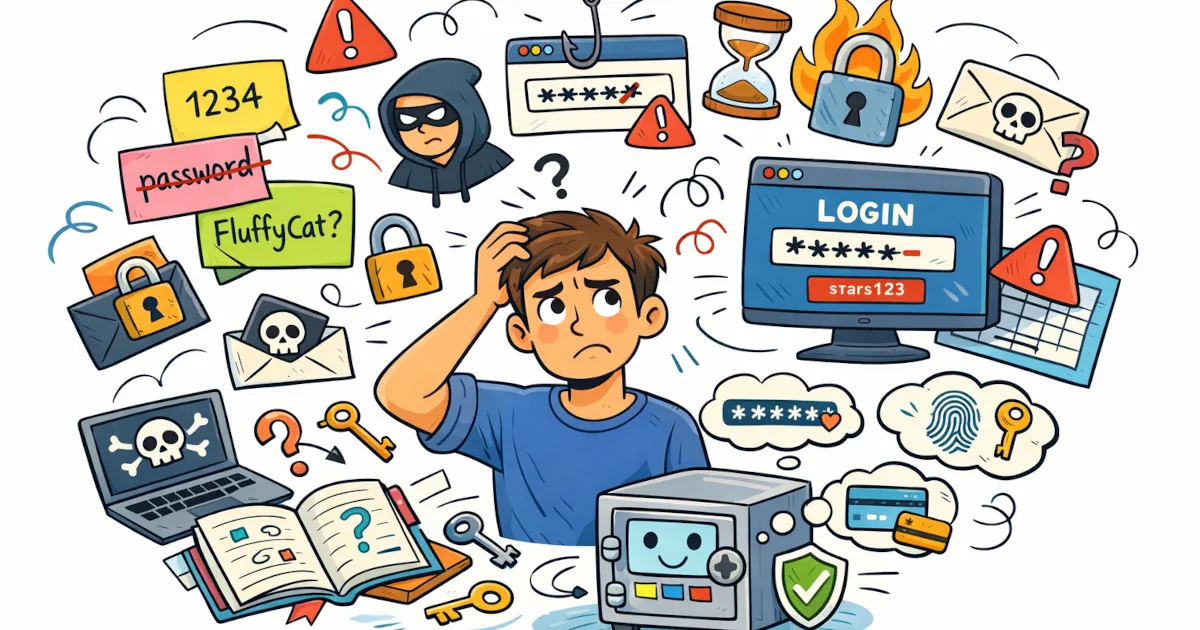
Modern life in one sentence: you need a password for everything. Banking, email, streaming, shopping, gaming, work accounts, your smart fridge… it never ends.
So you do what humans have done for decades: you write them down. In a notebook. In your phone’s notes app. On sticky notes that mysteriously migrate around your desk.
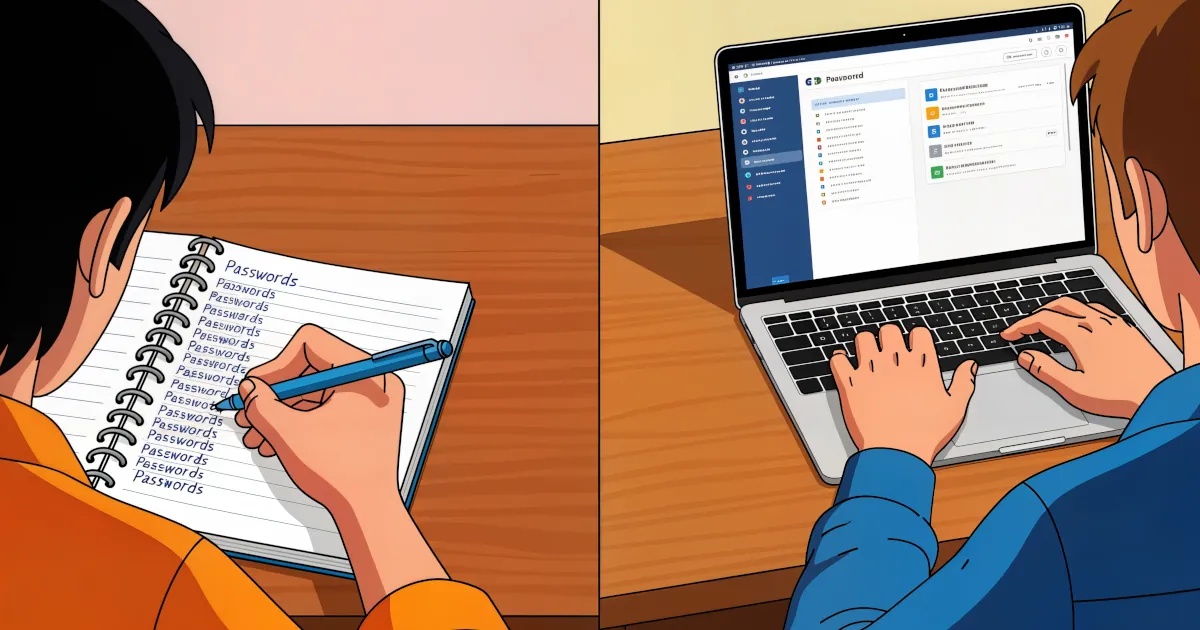
But there’s a big shift happening: password managers are becoming the go‑to solution for handling our login chaos. Let’s compare the old habits with the modern tools and figure out what actually keeps you safer (and saner).
The Old Habit: Writing Passwords Down
When people say “I keep my passwords somewhere safe,” what they usually mean is:
- A notebook in a drawer
- A note on their phone (“Work Stuff” or “Logins 2”)
- A text file on their laptop called
passwords-final-FINAL.txt - Sticky notes under the keyboard
Let’s be honest: this method has a few obvious perks.
Why people like writing passwords down
- It’s simple – No apps, no learning curve, just pen and paper (or a notes app).
- Feels “offline” – A notebook can’t be hacked over Wi‑Fi.
- You’re in control – Your list is physically with you.
But when you zoom out and think security instead of convenience, the cracks appear fast.
The risks of written passwords
They get reused
If you’re writing things down, you’re probably using some version of the same password:Password2023!Password2024!- Or
Password123!everywhere with tiny variations.
If one site is breached, attackers can reuse that password on your email, bank, social media, and more. That’s called credential stuffing, and it’s painfully common.
They get lost or stolen
- A notebook can be read by anyone who finds it.
- Your phone’s notes app may not be locked at all.
- A laptop text file is one malware infection away from being exposed.
If someone gets your “master list,” they’ve basically been handed the keys to your digital life.
They get outdated and messy
You reset a password once, forget to update your notebook, and now your list lies to you.
Then you reset again, and again. Now you’ve got:- “Netflix new new password”
- “Netflix newer password”
- “Netflix use this?”
Chaos is not a security strategy.
They don’t scale
Five accounts? Maybe paper works.
Fifty accounts across work, personal, subscriptions, and devices? You’ll either:- Reuse passwords (dangerous), or
- Spend way too much time hunting through pages or notes.
The Modern Tool: Password Managers
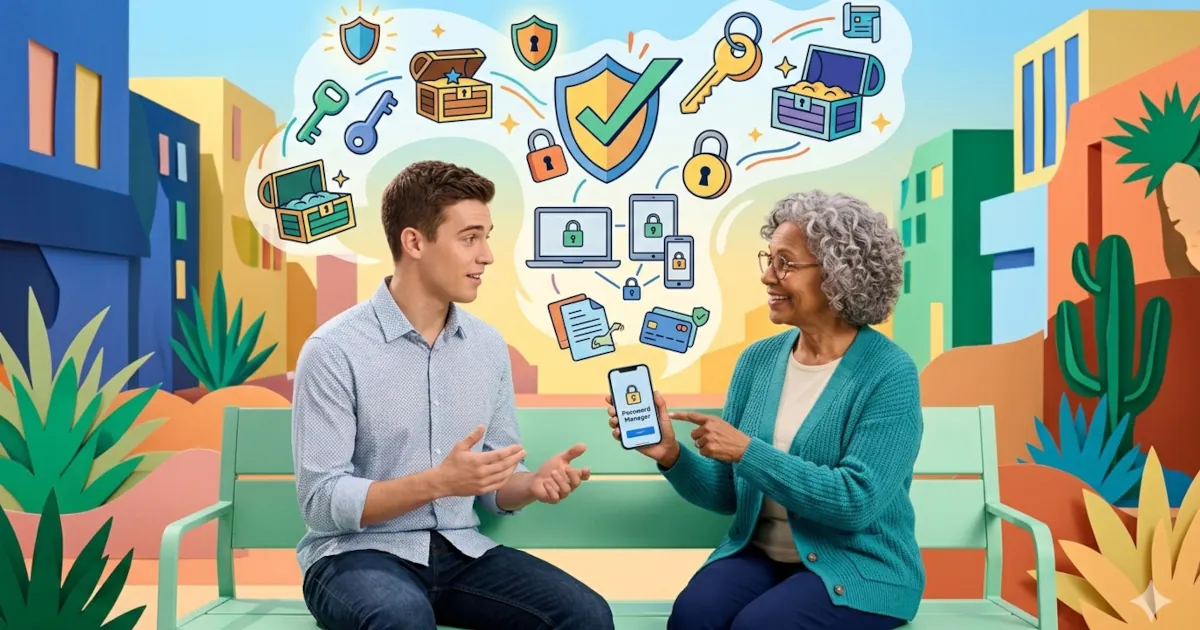
A password manager is an app that securely stores all your usernames and passwords in an encrypted “vault.” You only have to remember one strong master password; the manager remembers the rest.
What password managers actually do
- Generate strong, unique passwords for every site
- Store them securely in an encrypted database
- Auto-fill logins in your browser or apps
- Sync across phone, tablet, and computer
- Alert you if you’re using weak or reused passwords
- Sometimes warn you when a website you use has been breached
It’s like having a secure personal assistant whose entire job is “deal with my logins.”
Why Use Password Managers Instead of Notes?
Let’s compare the two directly.
1. Security: unique vs. reused
Writing passwords down:
Most people reuse or slightly tweak passwords. Easy for you, easy for attackers.Password manager:
Can create something likes9L!jR4%zP#2@for every account. You don’t need to memorize it; the manager does it for you.- If one account is compromised, the others are still safe.
Winner: Password manager. Unique passwords are the single biggest upgrade you can make to your security.
2. Protection against prying eyes
Paper/notes:
- Anyone who gets your notebook, phone, or unlocked laptop can view everything in plain text.
- A photo of your notebook is all it takes.
Password manager:
- Your vault is encrypted.
- Even if someone gets a copy of the password database, they still need your master password to unlock it.
- Many managers offer optional two-factor authentication (2FA) for extra security.
Winner: Password manager. Encryption beats “hide the notebook and hope” every time.
3. Convenience and speed
Writing down:
- You scroll, flip pages, or search clumsy notes.
- Then you carefully retype that 16-character mess with symbols and numbers… and maybe mistype it. Twice.
Password manager:
- Auto-fills your login forms in browsers and apps.
- Saves new logins when you sign up.
- Updates passwords automatically when you change them (in many cases).
Winner: Password manager. It’s faster, easier, and makes strong passwords actually usable.
4. Recovery if something goes wrong
Notebook scenario:
- House fire, lost bag, or a theft can wipe out your only record.
- You’re now smashing “Forgot password?” on 40 different sites.
Password manager:
- Your vault is usually backed up and synced to the cloud.
- Lose your phone? Install the app on a new device, log in, and your passwords are back.
Winner: Password manager. Redundancy and sync beat a single fragile object.
5. Extra security features
Password managers often do more than just store passwords:
- Security audit – Tells you which passwords are weak, reused, or old.
- Breach monitoring – Alerts you if one of your accounts appears in a known data breach.
- Secure notes – Store Wi‑Fi keys, license keys, recovery codes, and more.
- Password sharing – Securely share a login (e.g., Netflix, family accounts) without sending the actual password via text or email.
Your notebook offers exactly none of this.
“But Aren’t Password Managers a Big Target?”
Fair question. You’re putting all your passwords in one place; that sounds risky.
A few important points:
- Reputable password managers encrypt everything on your device before it ever hits their servers.
- They don’t know your master password and can’t see your data.
- Without your master password (and often 2FA), an attacker just sees scrambled data.
Yes, password managers are a target. But they’re built to assume that. A plain text note on your phone or a paper list assumes nobody ever looks. That’s not realistic.
How to Start Using a Password Manager (Without Losing Your Mind)
You don’t need to switch everything in one stressful weekend. Try this:
Pick a reputable password manager
Examples include Bitwarden, 1Password, Dashlane, and others. Many have free tiers.Create a strong master password
Make it:- Long (at least 14–16 characters)
- A passphrase is great:
river.coffee.window.brick - Write it down once and keep it somewhere genuinely safe while you memorize it.
Turn on two-factor authentication (2FA)
This adds an extra layer of protection for your vault.Start with your most important accounts
- Bank/financial
- Cloud storage
- Work accounts
Change each to a unique, manager-generated password and save it to the vault.
Let the manager save as you go
Over days and weeks, every time you log into something, update it to a strong unique password and save it. Gradual migration is fine.Retire the notebook/notes app
Once you’re confident your key accounts are in the manager, shred that password sheet or clean out your notes file.
The Bottom Line
- Writing passwords down feels simple and familiar, but it pushes you to reuse passwords, leaves them exposed in plain text, and doesn’t scale.
- Password managers give you strong, unique, encrypted, auto-filled passwords everywhere, with backups and extra security tools built in.
If you’re choosing between “modern tools” and “old habits,” password managers win on security, convenience, and long-term sanity.
You don’t need to be “into tech” to use one. You just need to be tired of juggling logins and ready to let software do the annoying part for you.