
Password Manager vs Browser Autofill
So you’re tired of typing passwords and letting your browser “remember” them feels like magic. Chrome, Safari, Edge, Firefox… they all offer to save and autofill passwords. Easy, right?
But here’s the catch: browser autofill is convenient, not necessarily secure. A dedicated password manager is built for security first, convenience second.
Let’s break down why a password manager is usually the smarter choice, especially if you care about your accounts, your money, and your sanity.
What’s the Difference, Really?
Browser Autofill
- Built into your web browser
- Saves usernames and passwords for sites you visit
- Autofills login forms automatically
- Sometimes syncs across devices (if you’re signed into the same browser account)
It’s mainly a convenience feature, not a full security solution.
Password Manager
- A dedicated app (like Bitwarden, 1Password, Dashlane, KeePass, etc.)
- Stores passwords, credit cards, secure notes, 2FA backups, and more
- Works across all browsers and devices
- Designed with security and encryption as the top priority
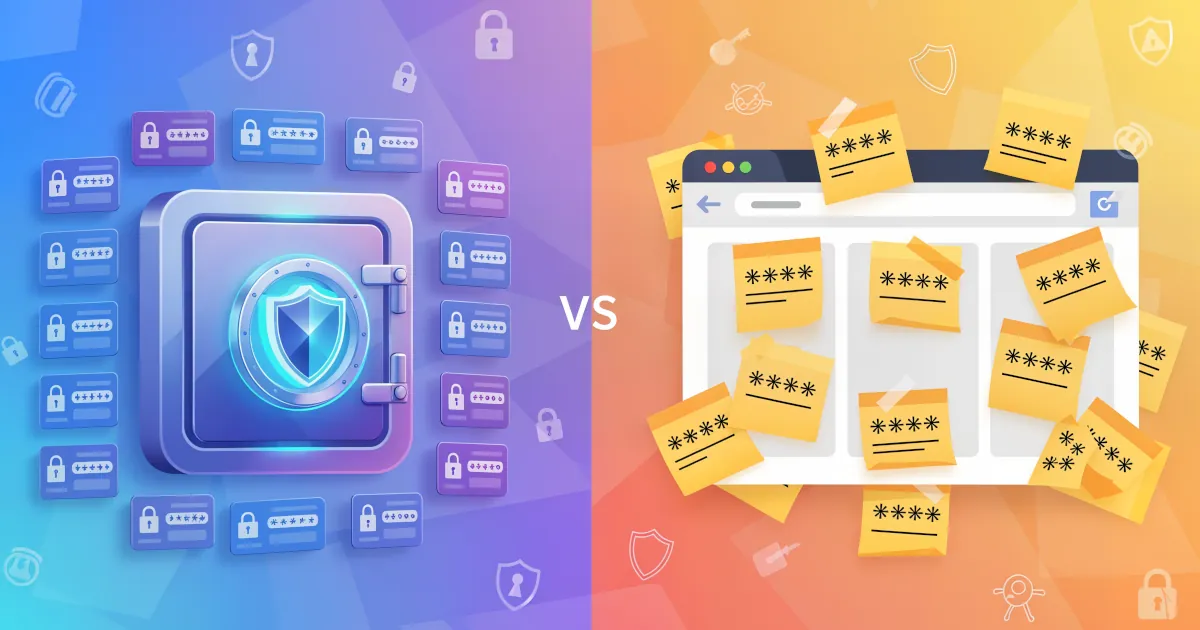
It’s like the difference between stuffing cash in your car’s glove box vs using a safe.
Why You Should Use a Password Manager (Instead of Just Autofill)
1. Strong, Unique Passwords on Every Site
Browser autofill often just saves whatever you type. If that’s:
Password123- Your dog’s name
- Or the same password on multiple sites
…your browser will happily reuse that weak password everywhere.
Password managers, on the other hand, are built around password generation:
- Unique password per site
- Long, random, impossible-to-guess combinations
- You never have to remember them
Why this matters:
If one site gets hacked and your password leaks, attackers will immediately try that same password on your email, bank, and social accounts.
With a password manager, reused passwords basically disappear from your life.
Benefit: Massive boost in security with almost zero extra effort.
2. Better Protection Against Device Snooping
On many systems, browser passwords are easier to access:
- If someone gets physical access to your computer
- If malware is running under your user account
- Or if your browser settings are not locked down
Often, your saved passwords in a browser can be viewed just by unlocking your system or entering your device password once.
A password manager adds an extra layer:
- Everything is encrypted with a master password
- The manager locks automatically after a period of inactivity
- Even if someone opens your browser, your vault can still be locked
You basically get a secure safe inside your device, not just an open drawer behind the browser.
Benefit: If your device is stolen or left unlocked, your accounts are still much better protected.
3. Protection Against Phishing
Phishing = fake websites trying to trick you into entering your real password.
Browser autofill tends to be a bit more naive. It may autofill on lookalike domains like:
paypa1.cominstead ofpaypal.comg00gle.cominstead ofgoogle.com
Some browsers are getting better, but many still focus on convenience over strict checking.
Password managers, however, usually:
- Only autofill on exact matching domains
- Don’t autofill if the URL looks off or unfamiliar
- Won’t “recognize” a phishing site as the real thing
So if you click a fake login link, your password manager often just sits there and refuses to fill anything in. That’s a big flashing red warning that something’s wrong.
Benefit: Built-in phishing defense just by using the autofill from your password manager.
4. Works Across All Browsers and Devices
If you only use one browser on one device, autofill might feel fine. But real life is messier:
- Laptop at home
- Work computer
- Phone
- Maybe a tablet
Use Chrome at work, Safari on your phone, Edge on your gaming PC? Your browser password data gets fragmented and out of sync, or you end up emailing passwords to yourself. Not ideal.
A password manager:
- Syncs your vault across all your devices
- Works through browser extensions, desktop apps, and mobile apps
- Keeps one single, consistent list of logins
You’re no longer locked into one browser just because it “knows” your passwords.
Benefit: Flexibility and convenience, no matter what device or browser you’re using.
5. More Than Just Passwords
Browsers mostly store only login credentials. A password manager can secure much more:
- Credit card details
- Bank accounts and routing numbers
- Wi-Fi passwords
- Software license keys
- Private notes (passport details, recovery codes, etc.)
All of this is encrypted and protected under your master password.
Benefit: One secure place for all your sensitive data, instead of scattered in notes apps, emails, and screenshots.
6. Better Sharing (Without Sharing the Password)
Need to share access to:
- A Netflix account with family
- A business tool with a coworker
- Your Wi-Fi with a guest
With browsers, you end up giving them the actual password. Now they can use it, change it, or share it with others.
Many password managers offer secure sharing:
- Share access without revealing the password in plain text
- Revoke access later
- Keep track of who has what
Benefit: You stay in control, even when other people need access.
7. You Actually Remember Fewer Passwords
This sounds backward, but:
- With browser autofill, you tend to reuse simple passwords because you’re afraid of forgetting them.
- With a password manager, you only need to remember one strong master password (and maybe your email and device passwords).
The manager remembers everything else.
Benefit: Less mental load, fewer “Forgot password?” clicks, and stronger overall security.
Is Browser Autofill Always Bad?
Not necessarily. Browser autofill is:
- Better than writing passwords on sticky notes
- Better than reusing the same 3 passwords everywhere
- Fine for low-risk accounts you don’t really care about
But for your main identity and important accounts (email, banking, social media, cloud storage), relying only on browser autofill is like locking your front door but leaving the windows open.
If you want both convenience and real security, a password manager is the way to go.
How to Switch Without Losing Your Mind
Pick a password manager
Free options: Bitwarden, KeePass
Paid options: 1Password, Dashlane, NordPass, etc.Import passwords from your browser
Most managers let you export from Chrome/Safari/Edge/Firefox and import everything in one go.Set a strong master password
Long phrase > random junk you forget. Something like a sentence you can remember, with a few tweaks.Turn off browser password saving
Avoid confusion and duplicate prompts. Let your password manager handle it.Enable 2FA on the password manager
Add an extra layer so even if someone guesses your master password, they still can’t get in easily.
Final Verdict: Password Manager vs Browser Autofill
- Browser autofill: Convenient, basic, and better than nothing.
- Password manager: Convenient, secure, flexible, and designed for protecting your digital life.
If your accounts matter to you, a password manager is not just a “techie tool.” It’s your digital seatbelt.