
Password Manager Myths Debunked
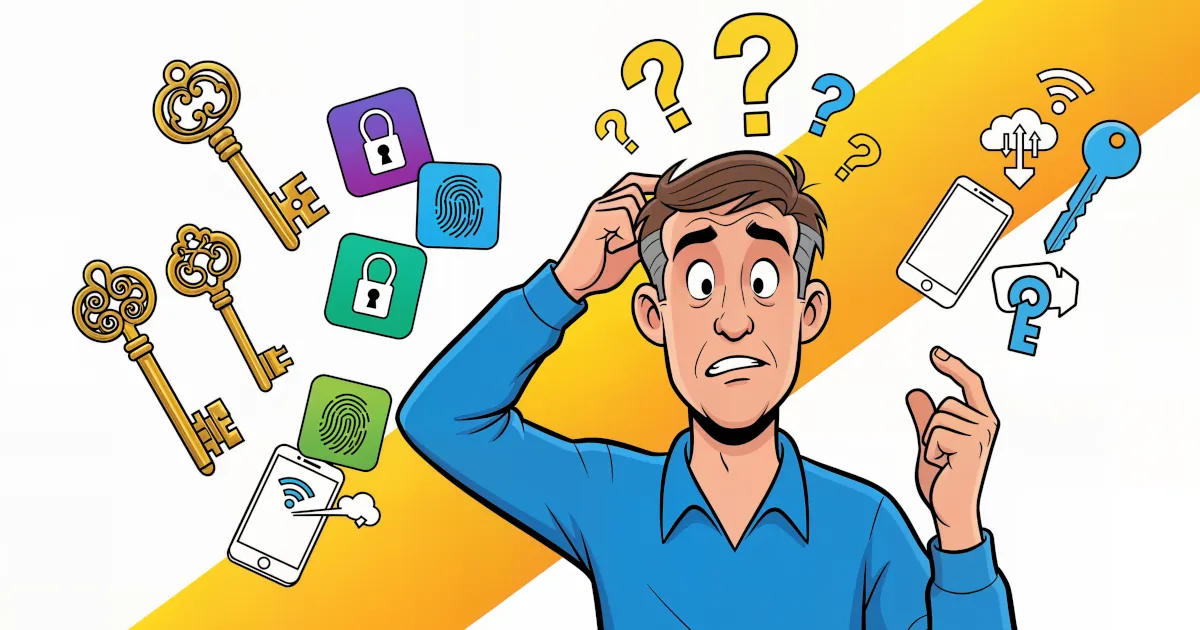
If you’ve ever thought “I don’t trust password managers” while reusing the same three passwords everywhere… this one’s for you.
Password managers sound technical and scary, but they’re actually one of the simplest tools you can use to stay safer online. Let’s bust the biggest myths and make this whole “security” thing a lot less confusing.
Myth #1: “Password managers are not safe – they can be hacked”
Let’s flip this around: everything connected to the internet can be hacked. That includes:
- Your email
- Your social media
- Your favorite shopping site
- And yes, password managers too
The real question is: what’s the safer option compared to the alternatives?
With a reputable password manager:
- Your passwords are encrypted on your device before they’re stored.
- The company generally cannot see your passwords (they only see scrambled data).
- Even if someone breaks into the company’s servers, they’d get a pile of meaningless encrypted junk unless they also know your master password.
Compare that to:
- Reusing the same password everywhere
- Storing passwords in your browser with no extra protection
- Keeping them in a notes app or a spreadsheet
- Using easily guessed passwords like
Summer2024!for every site
In almost every realistic scenario, a good password manager is safer than how most people handle passwords on their own.
Why should you use a password manager? Because it reduces the risk where you’re most likely to fail: human memory, bad habits, and reused passwords.
Myth #2: “If someone gets my master password, I’m doomed”
This one sounds scary, and there’s some truth in it:
Your master password is extremely important. But that doesn’t mean you’re defenseless.
Here’s how to make this myth mostly irrelevant:
Use a strong, unique master password
- Make it long and memorable. Example:
purple-rain-clouds-dance-at-midnight - Don’t reuse it anywhere else. Ever.
- Make it long and memorable. Example:
Turn on two-factor authentication (2FA)
- This means even if someone guesses or steals your master password, they still need a code from:
- An authenticator app
- A hardware key
- Or sometimes SMS (less ideal, but still better than nothing)
- This means even if someone guesses or steals your master password, they still need a code from:
Lock devices and apps
- Use a PIN, fingerprint, or face unlock on your phone and computer.
- Set the password manager to lock after a short period of inactivity.
So yes, your master password is a “key to the kingdom.” But you’re not just leaving it lying around on the kitchen table. With 2FA, device security, and a strong passphrase, compromising it becomes very, very hard.
Myth #3: “Password managers are only for tech experts”
You don’t need to be “good with computers” to use a password manager. The best ones are designed for normal, busy, distracted humans.
Most password managers:
- Autofill usernames and passwords for you in your browser and apps
- Suggest strong passwords automatically when you create a new account
- Save new logins with one click (“Save to password manager?” -> Yes please)
- Work across your phone, tablet, and computer without you doing anything complicated
In other words:
If you can:
- Install an app
- Tap “Allow”
- Click “Save”
…you can use a password manager.
The hardest part is the first 10–15 minutes of setup. After that, it saves you time and brainpower every single day.
Myth #4: “I only have a few accounts. I can remember my passwords”
Let’s test that:
- Main social media or messaging apps
- Online banking
- Shopping sites (Amazon, eBay, etc.)
- Streaming services
- Work or school accounts
- Travel apps (airlines, hotel chains, ride-sharing)
- Utilities and bills
Most people have dozens of accounts – some have hundreds.
And here’s the problem:
When people rely on memory, they usually:
- Reuse the same password on multiple sites
- Make tiny changes:
MySecurePass1!,MySecurePass2!, etc. - Use patterns that hackers know how to guess
A password manager lets you:
- Use a different, strong password for every single account
- Not worry about remembering any of them except one: your master password
- Log in quickly without hunting through notes, screenshots, or old emails
Benefit: massive upgrade in security, and surprisingly, an upgrade in convenience too.
Myth #5: “My browser’s built-in password manager is enough”
Browser password managers (like those in Chrome, Safari, Edge, Firefox) are better than nothing, but they have limitations.
Browser managers typically:
- Are tied to that specific browser
- Can be weaker on security features
- Don’t always handle app logins well
- Usually don’t offer full security reports or alerts
Dedicated password managers usually:
- Work across all browsers and devices
- Offer password health checks (spotting weak, reused, or breached passwords)
- Provide secure sharing of passwords with family or team members
- Store extra secure data like:
- Wi-Fi passwords
- Notes (like recovery codes)
- Credit card details
- ID numbers and documents
If your life is entirely inside one browser on one device, the browser manager might be “okay.”
But as soon as you add more devices, more apps, or you care about stronger security, a dedicated password manager gives you more control and more benefits.
Myth #6: “It’s too much hassle to move everything into a password manager”
Yes, there is some initial effort—but it’s less painful than you think, and you only do it once.
A simple approach:
Start small
- Install a password manager.
- Add your most important accounts first: email, banking, main social accounts.
Let it grow naturally
- Every time you log in somewhere, let the password manager save it.
- When a site asks you to reset your password, generate a new strong one and save it.
Use an import if possible
- Many password managers can import from your browser or a CSV file.
- That means a lot of your logins might come over automatically.
Within a week or two, most of your commonly used accounts will be in there, because you’ve naturally logged into them.
After that, you’re not adding “extra work” — you’re removing the work of:
- Resetting forgotten passwords
- Typing everything out manually
- Guessing which password version you used this time
Myth #7: “I don’t have anything worth hacking”
You do. Everyone does.
Attackers aren’t always targeting you personally; often, they’re going after anyone who’s easy to exploit.
What’s valuable?
- Your email account (can be used to reset other passwords)
- Your social media (for scams or impersonation)
- Your online shopping accounts (stored addresses, maybe card details)
- Your identity details (names, addresses, dates of birth)
Even if your bank is “safe,” a compromised email can lead to:
- Password resets on financial accounts
- Phishing attempts on your contacts
- Fraud and identity theft down the line
Using a password manager is not just “for important people.” It’s for anyone who:
- Uses email
- Logs in to websites
- Has any kind of online presence
So… basically everyone.
The Real Benefits of Using a Password Manager
Let’s sum up the big benefits:
Stronger security:
- Unique, complex passwords for every account
- Less damage if one site gets breached
Less mental load:
- Remember one master password instead of 97 variations of “Password123!”
- No more guessing or constant password resets
Faster logins:
- Autofill on websites and apps
- Sync across your devices
Better awareness:
- Alerts about weak or reused passwords
- Notifications when a service you use suffers a known breach
In short: way better security with less effort from you.
What You Can Do Next
If you’re not using a password manager yet, here’s a simple plan:
- Pick a reputable manager (free or paid – both exist).
- Create a long, memorable master password.
- Turn on two-factor authentication for it.
- Add your most important accounts first.
- Let the manager take over from there.
You don’t need to be perfect. You just need to be safer than you were yesterday. A password manager gets you there quickly.