
How to Use Password Managers Across All Devices
Juggling passwords across your phone, tablet, and PC can feel like a full‑time job. Different logins, random notes, “temporary” spreadsheets, and that one password you definitely remember… until you don’t.
Enter the password manager: one app to rule them all, on every device you own.
In this guide, you’ll learn exactly how to use a password manager across phones, tablets, and computers, how syncing works, and the main benefits of doing it the right way.
What Is a Password Manager (and Why Should You Care)?
A password manager is an app that:
- Stores your logins and other sensitive info (passwords, credit cards, secure notes)
- Encrypts everything so only you can unlock it
- Automatically fills passwords on websites and apps
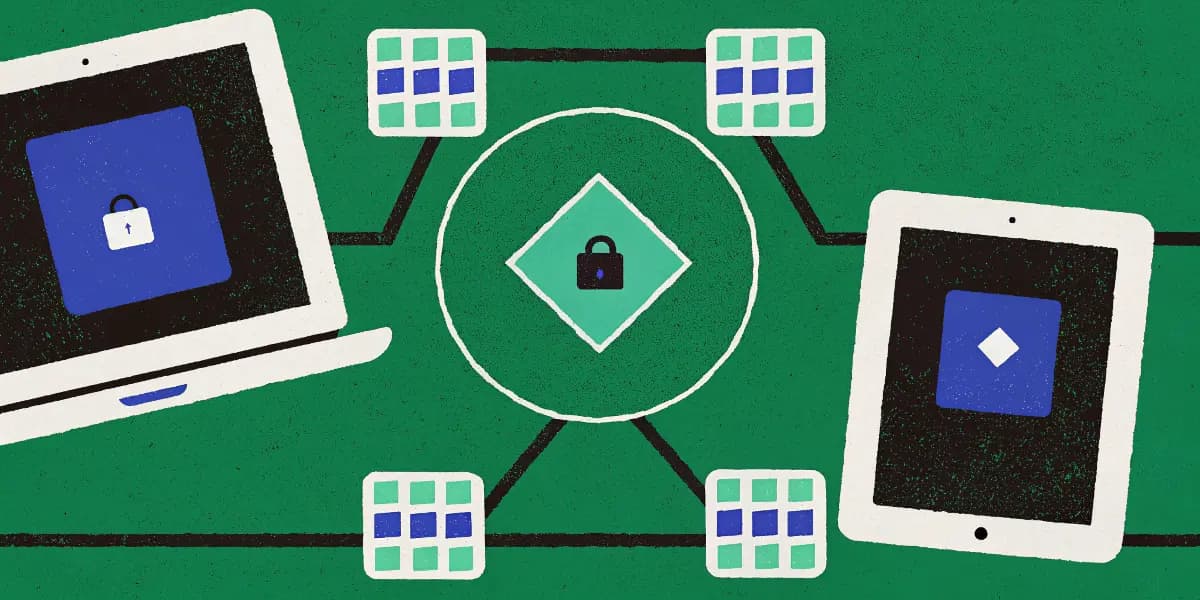
- Syncs data across devices through the cloud
Instead of remembering 73 different logins, you remember one master password. The manager does the rest.
Key Benefits of Using a Password Manager
Let’s hit the main benefits before we dive into the “how”:
Way stronger security
You can use long, random, unique passwords everywhere, without memorizing any of them.Same passwords on every device
Save on your laptop, auto-fill on your phone. No emailing yourself passwords. No USB stick of doom.Huge time saver
No more reset links, no more “incorrect password” loops. One tap, you’re in.Easy to update and manage
Data breach? You can quickly see which accounts are affected and change passwords in one place.Less mental clutter
Offload all those logins to a tool designed for it. Your brain is for ideas, not for “Password123!?” variants.
Step 1: Pick a Good Password Manager
First, choose your tool. Some popular options include:
- Bitwarden
- 1Password
- Dashlane
- LastPass
- Keeper
- Built-in options like iCloud Keychain (Apple) or Google Password Manager (Android/Chrome)
When you’re thinking about multi-device use, focus on:
- Cross-platform support: Does it work on Windows, macOS, iOS, Android, and your browser?
- Browser extensions: Chrome, Edge, Firefox, Safari, etc.
- Mobile apps: Native apps for iOS and Android.
- Sync included?: Many managers include cloud sync in their free or basic plans.
If you regularly switch between devices (home PC, work laptop, phone, tablet), choose something that works everywhere you are, not just on one platform.
Step 2: Set Up Your Master Password and Account
Once you’ve chosen a manager, you’ll:
- Create an account (email + master password)
- Set your master password
This is the one password you must remember, so:- Make it long (at least 14+ characters)
- Use a mix of words, maybe a phrase
- Avoid personal details like birthdays, pet names, or addresses
- Write it down once and store it somewhere safe (like a physical safe or a locked drawer) until you’ve memorized it.
Your master password is the key to your entire vault. The app encrypts everything so that even the company can’t see your data. That also means if you forget your master password, you may be locked out permanently (depending on the service and its recovery options).
Many managers also offer:
- Two-factor authentication (2FA): Turn this on. It adds a code from an app (like Authy or Google Authenticator) on top of your master password.
- Recovery methods: Recovery keys, backup codes, or emergency contacts. Set these up early.
Step 3: Install the Password Manager on All Your Devices
To enjoy the full cross-device benefits, you need the password manager everywhere you log in.
On Your Computer (Windows or macOS)
- Install the desktop app from the official site.
- Install browser extensions for the browsers you use:
- Chrome / Edge / Brave
- Firefox
- Safari (on macOS)
- Sign in with your account on both the desktop app and the browser extension.
- Make sure sync is enabled in the settings. Usually, it’s on by default.
Now when you log into a website in your browser, the extension can offer to save the password and fill it next time.
On Your Phone (iOS or Android)
- Download the official app from:
- Apple App Store
- Google Play Store
- Open the app and sign in to your account.
- Turn on autofill:
- On iOS:
- Settings → Passwords → Password Options
- Enable your chosen password manager as the autofill provider.
- On Android:
- Settings → System → Autofill → Passwords or Autofill Service
- Choose your password manager.
- On iOS:
Once that’s done, your phone can auto-fill logins in apps and browsers (like Safari, Chrome, or your default browser).
On Your Tablet
Good news: tablets are basically just big phones.
Repeat the same steps you used for your phone:
- Install the app
- Sign in
- Turn on autofill in system settings
If you use a tablet as a laptop replacement (keyboard, browser, etc.), having your password manager there will make it feel like a full desktop experience.
Step 4: Start Adding and Syncing Passwords
Now the fun part: filling your vault.
You have a few ways to get your logins in:
1. Let It Capture Logins Automatically
When you log into a site or app:
- The password manager will pop up and ask:
“Save this password?” - Tap or click Save.
Next time you visit that site (on any device), it will offer to auto-fill.
2. Import Existing Passwords
If you’ve been letting your browser save passwords, you might be able to:
- Export them from your browser as a CSV
- Import that file into your password manager
Most big managers and browsers have step-by-step guides on this. This can instantly move dozens or hundreds of logins into your new system.
3. Manually Add Important Accounts
Some accounts are critical and worth adding right away:
- Email accounts
- Banking and financial apps
- Work accounts
- Cloud storage (Google, Microsoft, Dropbox, etc.)
- Social media
Add them by hand if needed to be sure your most important logins are securely synced.
Step 5: Use the Password Manager Everywhere
Now the real benefit appears: smooth, cross-device login.
On Your Computer
- Go to a login page
- Click in the username or password field
- Your browser extension should:
- Suggest the correct login
- Fill it with one click
If you have multiple accounts on one site, you can select which one to use from the extension menu.
On Your Phone or Tablet
- Open the app or website
- Tap the login field
- Your phone should:
- Show a “Passwords” or “Autofill” suggestion
- Offer your saved login from the password manager
You approve it (with Face ID, fingerprint, or PIN), and it fills everything for you.
The beauty is:
If you save a new login on your computer, it’s instantly available on your phone. Same account, same password, everywhere.
Step 6: Upgrade Your Security with Strong, Unique Passwords
Once everything is syncing, start improving your security:
Use the built-in password generator
When creating a new account:- Let the manager generate a long, random password
- Save it to your vault
- You never have to memorize it
Update weak or reused passwords
Many managers have a security audit or password health section that:- Flags reused passwords
- Shows weak or old passwords
- Highlights accounts in known data breaches
Work through this list gradually, updating accounts to strong, unique passwords.
- Store more than just passwords
You can also store:- Credit cards
- Secure notes
- Wi-Fi passwords
- Software license keys
All of this is then available across devices, securely.
Step 7: Simple Habits to Keep Things Safe
A password manager makes life easier, but a few habits keep it truly secure:
- Never share your master password with anyone
- Enable 2FA on your password manager account
- Keep devices locked with a PIN, password, fingerprint, or Face ID
- Only install the password manager from the official website or app stores
- Be careful on public or shared computers: log out when you’re done
Follow these, and the benefits of syncing across devices far outweigh the risks.
Wrapping Up
Using a password manager across phones, tablets, and PCs gives you:
- Stronger security with unique, random passwords
- Seamless logins on every device you use
- Less stress remembering and resetting passwords
Set it up once, turn on sync, and let the tool do the boring work.