
How to Use Password Managers Across All Devices
Learn to sync passwords on phones, tablets, and PCs.
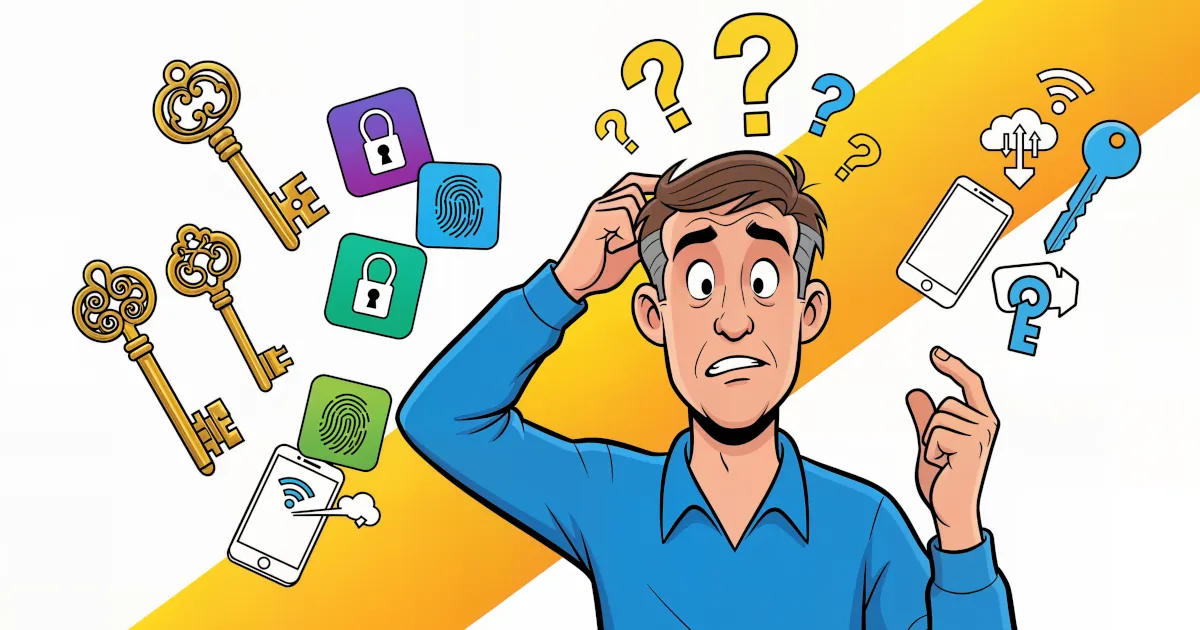
We live in a multi-device world. You might start your day checking emails on your phone, switch to your laptop for work, and end the evening streaming a show on your tablet — all while trying to remember which password goes where.
If that sounds familiar, you're not alone. Most people have dozens of logins scattered across devices, browsers, and apps. Keeping them all secure (and accessible) can feel like juggling flaming torches — blindfolded.
Luckily, there's a simple solution: a password manager.
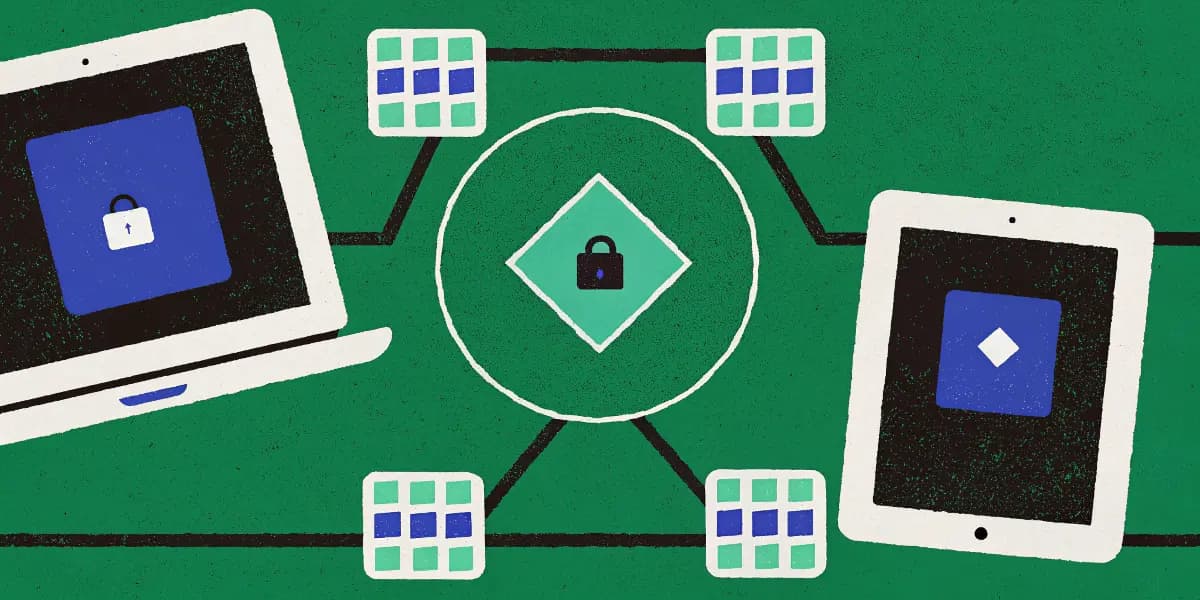
And not only does it store your passwords safely, it also syncs them across all your devices, so you always have your logins when you need them — whether you're on your phone, tablet, or PC.
Let's break down how to use a password manager across multiple devices, step by step, without any confusing jargon.
1. Start with One Password to Rule Them All
Before you can sync passwords, you'll need a password manager account and one very important thing: your master password.
This is the key to your entire digital kingdom — the one password you'll actually have to remember. Every other password (for your apps, websites, and services) will be stored and encrypted inside your password manager.
Make it long, memorable, and unique. For example:
"MyBlueParrotSingsAtSunrise2025"
Once that's set, you're ready to install your password manager on all your devices.
2. Install Your Password Manager on Every Device
Here's where the magic begins.
Most password managers have apps or browser extensions that work on every major platform. Whether you're an Android fan, an iPhone devotee, or someone still clinging to their trusty old Windows laptop, there's an app for you.
Common platforms supported by password managers:
- Mobile – Android, iPhone, iPad
- Desktop – Windows, macOS, Linux
- Browsers – Chrome, Safari, Firefox, Edge, Brave
Quick Setup Steps:
- Download the app on your phone and tablet from the App Store or Google Play.
- Install the browser extension on your PC or laptop.
- Log in using your master password.
- Sync your data (usually automatic).
That's it — you now have the same encrypted vault on every device.
3. Sync Your Passwords Securely Across Devices
One of the biggest perks of using a password manager is automatic syncing.
Whenever you add or change a password on one device, your password manager securely updates it everywhere else — no manual copying, no email reminders, no sticky notes.
For example:
- You sign up for a new shopping site on your laptop.
- The password manager saves your login details automatically.
- Later, when you open the same site on your phone, it's ready to log you in instantly.
All of this happens behind the scenes using end-to-end encryption, meaning your passwords are protected the entire time — whether stored locally or synced via the cloud.
Tech tip (in plain English):
The password manager doesn't send your actual passwords over the internet — only an encrypted version of them. Even the password manager company can't see what's inside your vault.
4. Enable Auto-Fill for Seamless Logins
Once your passwords are synced, you'll want to turn on auto-fill.
This feature saves you from typing passwords every time you log in. Your password manager will automatically fill them in for you — accurately, instantly, and securely.
How to turn on Auto-Fill:
- On Android:
Go to Settings → Passwords & Autofill → Select your password manager. - On iPhone:
Go to Settings → Passwords → AutoFill Passwords → Enable your password manager. - On Desktop Browsers:
Install the browser extension and log in. You'll see an icon appear in password fields.
Now, whenever you visit a login page, your password manager will fill in your credentials with a simple tap or click.
Bonus tip:
Many managers also fill in credit cards, addresses, and form data, saving you from endless typing while shopping online.
5. Use Browser Extensions for One-Click Access
Browser extensions are like your password manager's superpower.
Once installed, they integrate directly into your web browser — ready to fill in passwords, generate new ones, or save new logins automatically.
You'll usually see your password manager's logo appear next to login fields or in your browser's toolbar. Click it, and you can:
- View saved logins
- Generate a strong password
- Save new passwords instantly
This works the same on desktop and laptop browsers — and it syncs perfectly with your mobile app.
So when you create an account on your computer, the login will already be available on your phone.
6. Keep Everything Updated and Backed Up
Your password manager syncs automatically, but it's always smart to make sure everything is up to date.
Here's what to do:
- Check for app updates regularly on all devices.
- Ensure sync is enabled in settings.
- Back up your vault (some apps allow encrypted backups).
Most premium password managers (like Bitwarden, 1Password, or Dashlane) keep your data continuously synced and backed up using encrypted cloud storage.
That means if you ever lose a device, your passwords aren't gone — just reinstall the app and log in with your master password.
7. Add Two-Factor Authentication for Extra Safety
Syncing passwords is convenient — but let's make it ultra-secure too.
Turn on two-factor authentication (2FA) for your password manager account. This adds an extra layer of protection by requiring a second step (like a code or fingerprint) whenever you log in.
So even if someone somehow got your master password, they'd still need your phone or fingerprint to access your vault.
Most password managers let you enable 2FA using:
- Authenticator apps (like Google Authenticator, Authy, or 1Password itself)
- Hardware keys (like YubiKey)
- Biometrics (Face ID, Touch ID, fingerprint unlock)
Once enabled, your synced data remains safe — even if your phone or laptop falls into the wrong hands.
8. Manage Devices and Access Settings
Most modern password managers let you see all the devices connected to your account — and manage them directly from your settings.
For example, if you get a new phone or lose an old laptop, you can simply:
- Revoke access for the old device
- Log out remotely
- Re-sync your vault to the new one
This gives you full control and peace of mind, knowing exactly where your passwords are being used.
9. Use Cross-Platform Sync Features
Not all devices use the same ecosystem — and that's okay.
Password managers are designed to work seamlessly across different platforms. That means:
- You can start on an Android, continue on a Windows laptop, and finish on an iPad, all without missing a beat.
- You can use multiple browsers (Chrome at work, Safari at home) — your logins will stay consistent everywhere.
This cross-platform flexibility is what makes password managers essential in 2025. Your passwords follow you, not your device.
10. Common Syncing Problems (and How to Fix Them)
Even the best tools can hiccup occasionally. Here's how to handle the most common syncing issues:
| Problem | Possible Fix |
|---|---|
| Passwords not updating | Check your internet connection or hit the "sync" button manually |
| New device not syncing | Log out and back in; ensure cloud sync is turned on |
| Auto-fill not working | Reinstall browser extension or enable permissions |
| Forgot master password | Use recovery key or reset via emergency access (if supported) |
If your password manager offers support, their help center can usually fix syncing issues in minutes.
11. Best Password Managers for Multi-Device Sync
If you're looking for a password manager that plays nicely across all your gadgets, here are some top choices:
| Password Manager | Best Feature | Multi-Device Support |
|---|---|---|
| Bitwarden | Open-source, free sync across all devices | ✅ Excellent |
| 1Password | Secure sharing and family plans | ✅ Seamless |
| Dashlane | Built-in VPN and dark web monitoring | ✅ Excellent |
| NordPass | Easy-to-use interface, zero-knowledge encryption | ✅ Strong |
| Keeper | Enterprise-grade security | ✅ Very strong |
All of these offer encrypted cloud syncing, mobile apps, and browser extensions, making them ideal for anyone using multiple devices.
12. Why You'll Never Go Back
Once you start using a password manager across all your devices, you'll wonder how you survived without it.
Imagine this:
- No more typing complex passwords on tiny phone keyboards.
- No more forgetting logins when you switch devices.
- No more weak, reused passwords just because you couldn't remember the last one.
Your password manager quietly keeps everything organized, updated, and safe — whether you're on your couch or halfway across the world.
13. Quick Setup Recap
Let's wrap up with a quick checklist:
- Choose a password manager (Bitwarden, 1Password, Dashlane, NordPass, or Keeper).
- Create your master password.
- Install the app on all your devices.
- Enable auto-fill and browser extensions.
- Turn on two-factor authentication.
- Sync and relax.
You're now protected across every screen you own — effortlessly.
Final Thoughts: Security That Moves With You
The modern world doesn't stand still — and neither should your passwords.
Password managers let you live securely and conveniently across all your devices, giving you peace of mind, time saved, and stronger online protection than ever before.
No more retyping, no more guessing, and no more sticky notes on your monitor.
With a password manager, your security travels with you — from phone to tablet to PC — keeping every login locked tight and ready when you are.
#PasswordManager #OnlineSecurity #SyncPasswords