
How to Generate Strong Passwords Automatically
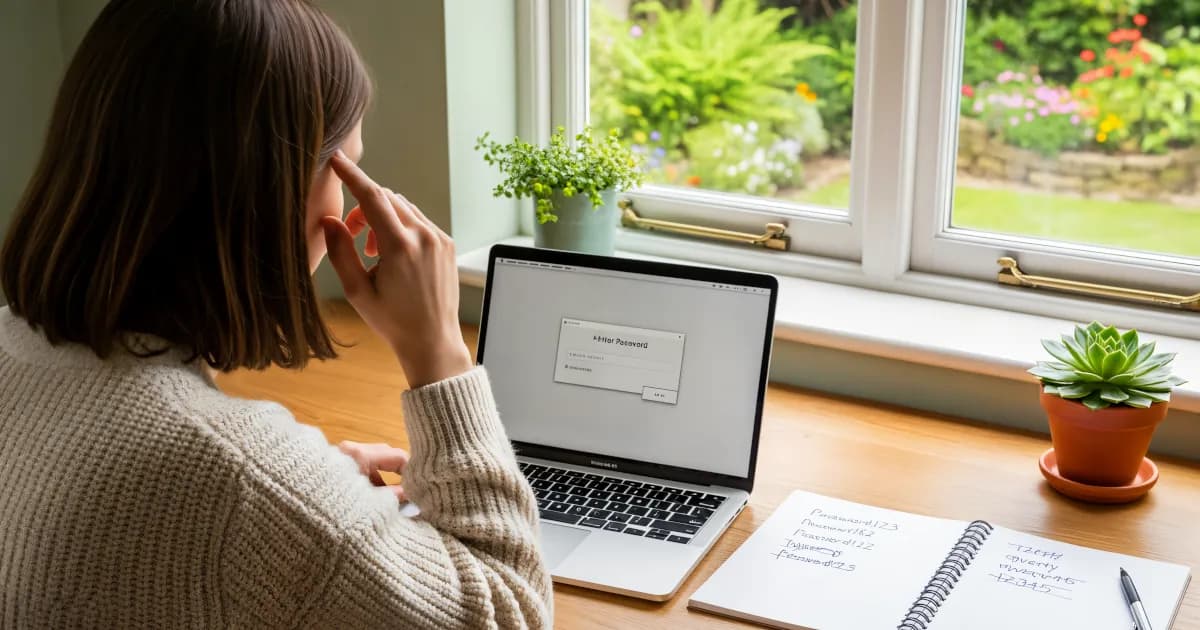
If you’re still using passwords like Summer2024! or the classic Password123, this is your sign: it’s time to upgrade.
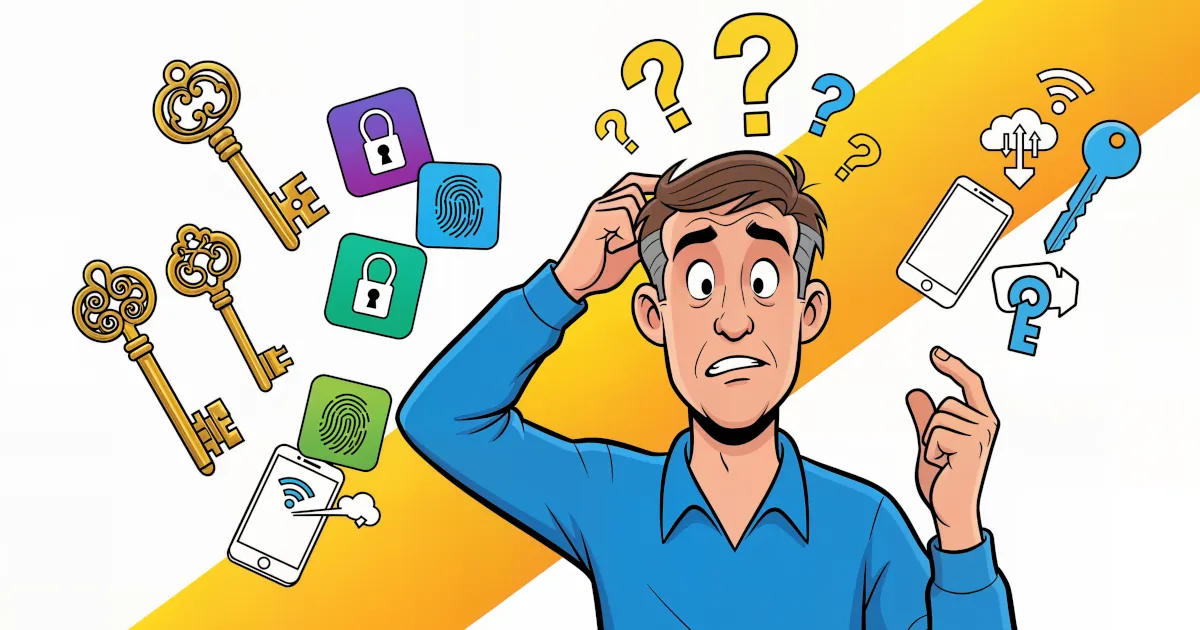
The good news? You don’t need to be creative, you don’t need to remember long gibberish, and you definitely don’t need a notebook full of passwords. You just need to know how to use a password manager and let it generate strong passwords automatically for you.
This guide will walk you through:
- What makes a password actually strong
- Why you should never reuse passwords
- How password managers work (in normal human language)
- How to use a password manager to generate strong, unique passwords automatically
- Extra tips to keep everything secure with minimum effort
By the end, you’ll be able to lock down your accounts with almost no extra work. Security on autopilot.
What Is a “Strong” Password, Really?
Let’s clear this up first. A strong password is:
- Long – at least 12–16 characters, more if possible
- Random – not based on words, birthdays, pets, or anything guessable
- Unique – different for every site or app
- Complex – uses a mix of letters, numbers, and symbols
Examples of weak passwords:
John1989LiverpoolFC!qwerty123P@ssword!
These look “clever” but they’re easy for attackers or automated tools to guess. Anything tied to your life (name, birthday, hobbies, kids, pets, team, favorite band) is low-hanging fruit.
Examples of strong passwords (the kind a password manager would generate):
Z7t$gM93!nEwP1xQafP4-Lw2!zB9_qVsmjDk7#vQzx!42FkN
You’re not supposed to remember these. A computer creates and stores them for you.
Why Reusing Passwords Is So Dangerous
Even if your password feels “pretty strong,” using the same one everywhere is like:
- Locking every door in your life with the exact same key,
- Then copying that key a hundred times,
- And leaving a few copies at random cafés you go to.
Here’s what actually happens in the real world:
- A website gets hacked.
- Their database of usernames and passwords is leaked.
- Attackers run those same username/password combos against other major services (email, banking, shopping, social media).
- If you reused the same password, they can log in as you.
This is called credential stuffing and it’s extremely common.
The only real defense:
A different, strong password for every single account.
That sounds impossible to manage manually. Which is exactly why password managers exist.
What Is a Password Manager (And Why You Need One)?
A password manager is like a secure digital vault that:
- Stores all your logins for websites and apps
- Automatically fills them in for you
- Syncs between your devices (phone, tablet, laptop, etc.)
- Generates strong passwords for new accounts with one click
You unlock the whole vault with one strong master password (or biometrics like your fingerprint or Face ID).
Think of it like this:
- You: remember 1 master password
- Password manager: remembers hundreds of long, random passwords
No more:
- “Forgot password?” every week
- Slightly changing your old password:
Password123,Password123!,Password123!! - Writing passwords in notes apps, sticky notes, or sending them to yourself by email
A password manager makes strong security automatic. Once it’s set up, it’s actually easier than using weak passwords.
How to Choose a Password Manager
There are many options, including:
- Built-in managers in browsers (Chrome, Edge, Safari, Firefox)
- System managers (iCloud Keychain on Apple devices, Google Password Manager)
- Dedicated apps (Bitwarden, 1Password, Dashlane, etc.)
Look for these features:
- Automatic password generation (strong, random passwords)
- Sync across devices
- Browser extensions (so it can autofill on websites)
- Mobile apps (for apps and mobile browsing)
- Strong encryption and a good security track record
If you’re just getting started, a simple, popular manager is fine. The most important thing is: use one.
Step-by-Step: How to Use a Password Manager to Generate Strong Passwords
Let’s walk through the process in plain language. The exact screens will differ depending on the app, but the flow is almost always the same.
Step 1: Install the Password Manager
You’ll usually want three things:
- Desktop app (optional but handy)
- Browser extension (Chrome, Edge, Firefox, Safari, etc.)
- Mobile app (iOS and/or Android)
Follow the instructions from the provider to sign up and log in. Most offer a free version that’s enough for many people.
Step 2: Create a Strong Master Password
This is the only password you really need to remember. So make it powerful.
Guidelines for a strong master password:
- At least 16+ characters
- Not reused anywhere else
- Not personal or guessable
- Easy for you to remember but hard to guess
A good trick is to use a passphrase:
- Pick 4–6 random words and connect them:
purple-rocket-window-jazz-forest
- Add some structure you’ll remember:
PurpleRocket!Forest_Jazz2024
Don’t store this master password in emails, simple notes, or messages. If you must write it down once, put it somewhere secure (like a physical safe) and don’t label it “Master Password.”
Once this is set, your password manager will encrypt your entire vault based on this password.
Step 3: Turn On Autofill and Auto-Save
In your password manager settings:
- Enable the browser extension
- Turn on autofill or auto sign-in (if available)
- Turn on auto-save new logins
Now, when you log in somewhere, the manager will offer to:
- Save your username and password
- Fill them in automatically next time
So you don’t have to type or remember long passwords.
Step 4: Generate Strong Passwords for New Accounts
Here’s where the magic happens.
Whenever you’re signing up for a new website or app and you see the “Create Password” field, do not try to invent one yourself. Instead, use the generator.
How it usually works:
- Click in the “Password” field.
- Your password manager will pop up a “Use generated password” option.
- Click that. It will create something like:
gx!R3tZp9wLk#1Vz
- The manager saves it in your vault under that site’s name.
You don’t need to see it again or remember it. You just log in with your manager next time.
Most managers let you customize:
- Length (set this to at least 16 characters if the site allows)
- Use of symbols, numbers, and mixed case
- Excluding ambiguous characters if you prefer (like
1vsl,0vsO)
Set your defaults once and let it run.
Step 5: Upgrade Old, Weak, or Reused Passwords
Now you’ve got the system. Time to fix the damage from the past.
Most password managers have a “security check” or “password health” feature that will:
- Flag reused passwords
- Show weak or short passwords
- Highlight old passwords that have been in known data breaches
Here’s what to do:
Start with important accounts:
- Banking / PayPal / financial accounts
- Cloud storage
- Work accounts
- Social media
Log in to one account at a time.
Go to Account / Security / Change password.
Use your password manager’s generator to create a new strong password.
Save the updated login in your vault.
Do this gradually, you don’t need to fix everything in one day. Start with your most critical accounts.
How to Use a Password Manager Day-to-Day
Once you’re set up, daily use is simple.
Logging In to Websites
- Go to a login page.
- Your password manager’s browser extension usually:
- Shows an icon in the username or password field
- Or offers to autofill
- Click it. It fills in your login details instantly.
If it doesn’t autofill, you can:
- Open the extension
- Search for the website’s name
- Click the login entry to fill
Logging In to Apps on Your Phone
On your phone:
- Install the password manager app.
- Enable it in your phone’s passwords/autofill settings.
- On iOS: Settings > Passwords > Password Options
- On Android: System > Languages & input > Autofill service (varies by device)
Now when an app asks for your username/password, the manager can:
- Suggest the right login
- Autofill with Face ID or fingerprint
No typing long passwords on tiny keyboards.
Extra Features That Make Security Even Easier
Most good password managers offer more than just login storage. Here are some useful extras.
1. Secure Notes
You can store:
- Wi-Fi passwords
- Software license keys
- Sensitive notes (like recovery codes)
These are encrypted inside the same vault as your passwords.
2. Two-Factor Authentication (2FA) Codes
Some managers can store and generate one-time 2FA codes (those 6-digit codes that rotate every 30 seconds).
This lets you:
- Log in with your password
- Then get the code from the same app
Just be aware: it’s extra convenient, but putting “everything in one place” creates more dependence on your manager. For higher security, some people prefer a separate authenticator app.
3. Password Sharing
Need to share a Netflix or family account login?
Many managers let you share access without exposing the actual password:
- Your family member can log in
- But they never see the raw password text
That way, they can’t then reuse it or forward it elsewhere.
Keeping Your Password Manager Safe
If a password manager protects everything, you might wonder: what if that gets hacked?
Modern password managers are designed so that:
- Your data is encrypted on your device
- Only the encrypted vault is stored on their servers
- Your master password is never sent to them
That means even if someone stole the vault, they’d still need your master password to unlock it.
To keep that master key safe:
- Use a long, strong master password
- Enable two-factor authentication (2FA) for your password manager account
- Lock your devices with PINs, passwords, or biometrics
- Don’t log into your password manager on random, untrusted computers
If you do that, using a password manager is far safer than reusing or memorizing passwords.
What About Built-In Browser Password Managers?
Chrome, Edge, Safari, and Firefox can all:
- Save passwords
- Autofill login fields
- Suggest strong passwords
These are much better than nothing and can be a good starting point. However, dedicated password managers often offer:
- Better cross-platform support
- Stronger security tools and reporting
- Easier password auditing
- Secure sharing
- More control over how passwords are stored and backed up
If you live mostly in one browser and one ecosystem (say, all Apple, or all Google), the built-in manager is fine to start. You can always upgrade later.
FAQ: Common Questions About Automatic Password Generation
“How am I supposed to remember all these long passwords?”
You don’t. That’s the whole point.
You remember:
- One strong master password
Your password manager remembers:
- Everything else
“What if I lose access to my password manager?”
You should:
- Write down your master password once and put it somewhere safe, or
- Use the manager’s account recovery options (if available) such as recovery keys
If you lock yourself out of your vault with no way to recover, even the password manager company usually can’t help. That’s by design.
“Isn’t putting all my passwords in one place risky?”
Not using a password manager means:
- Reusing passwords
- Using weak passwords
- Storing them in unsafe ways (notes, emails, screenshots)
A password manager puts them in one highly protected, encrypted place, which is a massive upgrade in security.
“Do I still need two-factor authentication (2FA) if I use strong passwords?”
Yes, whenever a site offers it.
Strong passwords protect you from:
- Guessing
- Brute-force attacks
- Credential stuffing
2FA protects you even if:
- Your password somehow leaks
- A site is compromised
Together, they’re very powerful.
Putting It All Together: Security on Autopilot
Here’s the simple system to generate strong passwords automatically and keep your accounts safe:
- Pick a password manager and install it everywhere.
- Create one strong master password you can remember.
- Turn on autofill and auto-save.
- For every new account, use the password generator instead of inventing your own.
- Gradually update old, weak, or reused passwords starting with important accounts.
- Add 2FA to critical services and your password manager itself.
Once you’ve done this, your digital life becomes both safer and easier.
No more guessing which version of “that one password” you used. No more scrambling to reset passwords during a login crisis.
Just tap, autofill, done. Security, but automatic.
If you want more quick, practical security tips like this, subscribe to our channel. We break down password managers, strong passwords, and automation step by step so you can stay secure without turning into a full-time IT person.