
What Is a Password Manager Explained Simply
What Is a Password Manager Explained Simply
You’ve probably heard people say “You should use a password manager,” and then… never really explain what that means.
Let’s fix that.
This guide is for regular people who just want to stay safe online without turning into IT support. No jargon, no lectures—just clear, simple explanations.
The Problem: Too Many Passwords, Not Enough Brain
Think about all the accounts you have:
- Banking
- Shopping sites
- Streaming services
- Social media
- Work accounts
Each one should have its own unique, strong password.
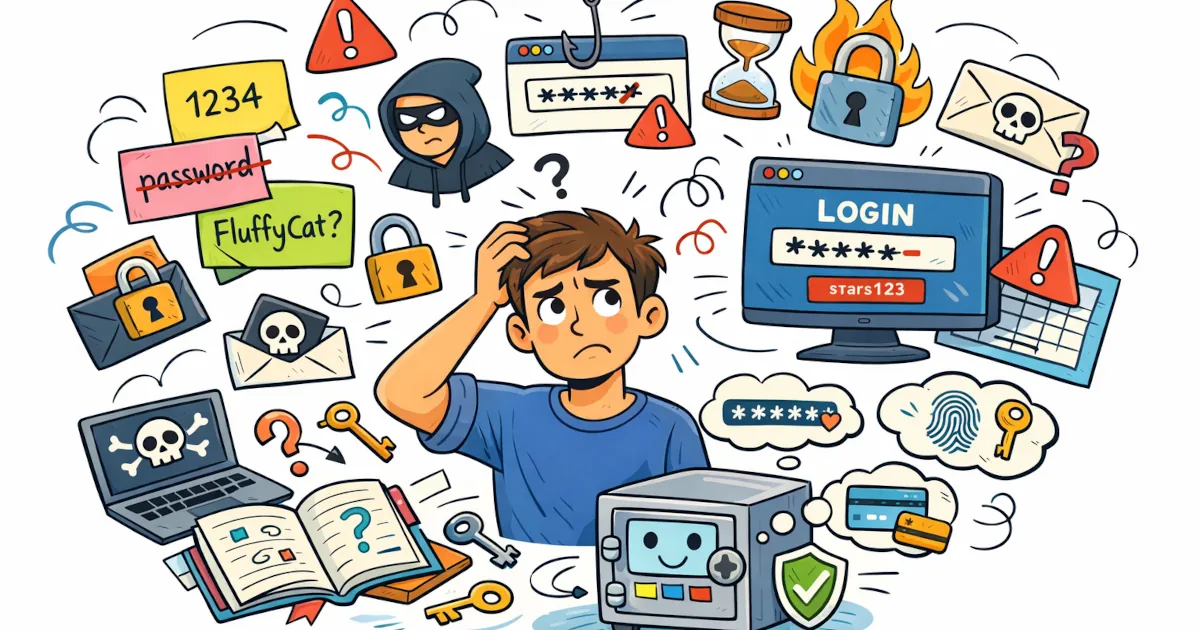
But humans do this instead:
- Reuse the same password everywhere
- Add a “1” or “!” at the end when forced to change it
- Use easy stuff like pet names, birthdays, or “Password123”
- Forget half of them and click “Forgot your password?” constantly
That’s not laziness—it’s just reality. Our brains are not built to remember dozens (or hundreds) of long, random passwords.
Hackers know this. If one site gets breached and your password leaks, they try that same email and password on other sites. If you reuse passwords, one leak can turn into a lot of stolen accounts.
This is exactly the problem password managers solve.
So… What Is a Password Manager?
Simple definition:
A password manager is an app that remembers all your passwords for you and keeps them locked in one secure place.
You only need to remember one strong password:
your master password.
The password manager remembers everything else.
Think of it like:
- A super-secure digital notebook
- A “vault” where all your logins live
- A brain extension that never forgets
How a Password Manager Works (In Normal Language)
Here’s what happens step by step.
1. You install it
You either:
- Download an app on your phone or computer, and/or
- Add a browser extension (Chrome, Edge, Firefox, Safari, etc.)
Popular examples (not endorsements, just names you’ll see):
- 1Password
- Bitwarden
- Dashlane
- LastPass
- NordPass
- Built-in managers like iCloud Keychain (Apple) or Google Password Manager
2. You create a master password
This is the one password to rule them all. It:
- Unlocks your password vault
- Should be long and unique (a phrase is great)
- Must not be used anywhere else
Example of a stronger master password style (don’t use this exact one):
correct horse jacket thunder movie rain
Long, random-ish phrase you can remember = good.
3. It stores your logins in an encrypted vault
Every username and password you save goes into a vault.
Encrypted means:
- The data is locked up using strong math
- Nobody can read it without your master password
- Even the company hosting the vault can’t see your passwords if it’s properly designed
If someone stole the file containing your vault, they’d see only scrambled nonsense.
4. It fills in passwords for you
Next time you log in to a site:
- Your password manager recognizes the site
- Offers to fill in your username and password
- You click once, and boom—you’re logged in
No more typing or guessing which version of your password you used.
5. It can generate strong new passwords
Whenever you create a new account or change a password, the manager can:
- Generate a long, random password like:
S!4pZg8%9@Lm2#rT - Save it automatically in your vault
You don’t have to memorize this. That’s the whole point.
Why Bother Using a Password Manager?
If you’re thinking, “Can’t I just write my passwords in a notebook?” let’s compare.
1. Strong, unique passwords for every site
With a password manager:
- Each account can have a totally different, strong password
- If one site is hacked, only that password is at risk
- Your other accounts stay safe
With reused passwords, one leak can unlock everything.
2. You only remember one main password
No more:
- “Was it DogName2022 or DogName2023?”
- Resetting your password every other login
- Keeping sketchy password lists in Notes or on sticky notes
You just:
- Remember the master password
- Let the manager remember the rest
3. Faster logins, less frustration
- One click or tap to fill in login details
- Works across many devices (phone, laptop, tablet)
- You can stop playing “guess the password” with every website
4. Better than your browser alone
Browsers like Chrome and Safari already try to remember your passwords. That’s OK, but:
- A dedicated password manager usually offers:
- Better security features
- Easier password sharing (for families, teams)
- Cross-browser, cross-device support
- Security alerts if a site you use is breached
Built-in managers are fine for many people. A dedicated one just gives you more control and features.
Is It Safe to Put All Passwords in One Place?
This is the big worry:
“What if someone hacks my password manager? Doesn’t that give them everything?”
Reasonable question. Here’s the key idea:
The real question: How is it protected?
A decent password manager:
- Encrypts your data before it leaves your device
- Never knows your master password
- Can’t read your vault even if they wanted to
So if someone hacks the company’s servers, they only get encrypted junk without your master password.
Your main job:
- Choose a strong master password
- Turn on two-factor authentication (2FA) for your password manager account if it supports it
Could anything be 100% unbreakable forever? Nothing is. But a properly used password manager is much safer than reusing simple passwords or storing them in plain text.
Security experts, tech pros, and privacy advocates use password managers themselves. That should tell you something.
Simple Tips for Getting Started
If you want to try a password manager, here’s a painless way to begin.
1. Pick one tool and stick with it for now
Look for:
- Good reputation and reviews
- Cross-device support (phone + computer)
- Clear privacy/security explanations
Free options exist; paid ones often add helpful extras, but you don’t have to start paid.
2. Create a strong master password
Use:
- A long phrase you can remember
- Something unique, not used anywhere else
- Not personal info like birthdays or pet names alone
Write it down carefully and store it in a safe physical place at first if you’re worried about forgetting.
3. Let it save as you go
You don’t have to move all passwords in one day.
- Every time you log into a site, let the manager save it
- Over time, your vault fills up naturally
- Gradually change weak/reused passwords to strong, unique ones using the generator
4. Turn on two-factor authentication (2FA)
If the password manager supports it:
- Use an authenticator app or hardware key if possible
- This adds a second step during login, making your vault safer
Quick FAQ
Q: Is a notebook really that bad?
A: A locked, hidden notebook is better than reusing one weak password everywhere. But if it’s lost, stolen, or seen by someone, there’s no protection. A password manager encrypts everything.
Q: What if I forget my master password?
A: In many cases, no one can reset it for you—that’s what makes it secure. Some tools offer recovery options; read their instructions carefully. Treat your master password like the key to your digital life.
Q: Isn’t this too complicated for non-techy people?
A: Once set up, daily use is simple: click, fill, done. The hardest part is just starting. If you can use a banking app, you can use a password manager.
The Bottom Line
A password manager is:
- A secure vault for your logins
- A tool that creates and remembers strong passwords for you
- One of the easiest ways to seriously improve your online security
Instead of trying to remember 50 weak passwords, you remember one strong one and let the password manager do the heavy lifting.
If you’re interested in more simple security tips like this, subscribe or follow for more easy tech basics you can actually understand and use.